

Adding a Default Cost Center to a Sales Store
Last updated:
When a sales order is created from a sales store and issued from multiple warehouses, the default behavior is to generate the journal entries using the default cost center assigned to each warehouse.
However, if there is a conflict between cost centers, you may need to generate these entries using the default cost center of the sales store instead.
Adding a Default Cost Center to a Sales Store
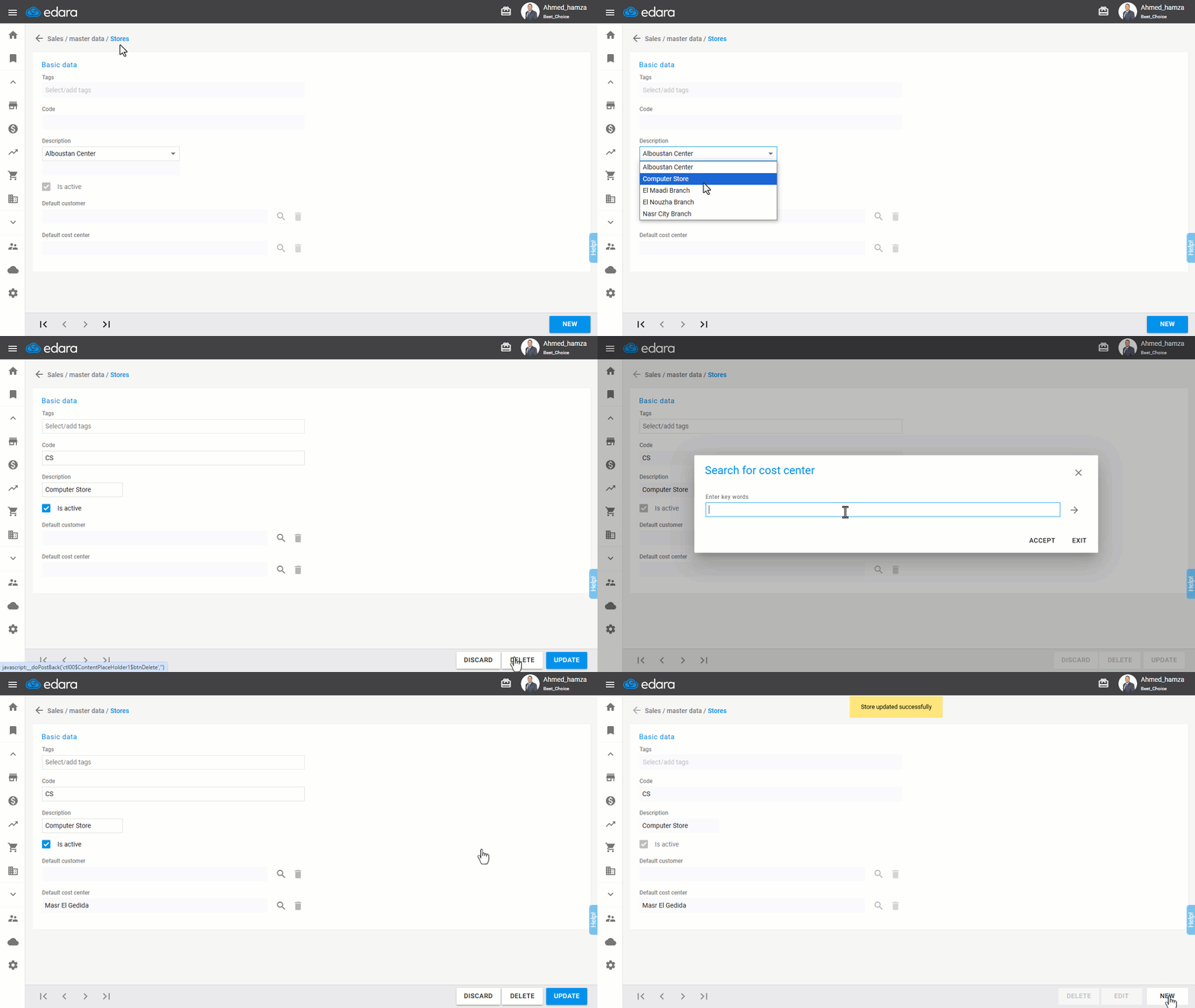
Ensure you have the necessary permissions for the sales store. Then:
- Go to the Sales module.
- Open the “Sales Stores” page.
- Search for the target store.
- Click on “Edit”.
- Add the Default Cost Center.
- Click on “Update”.
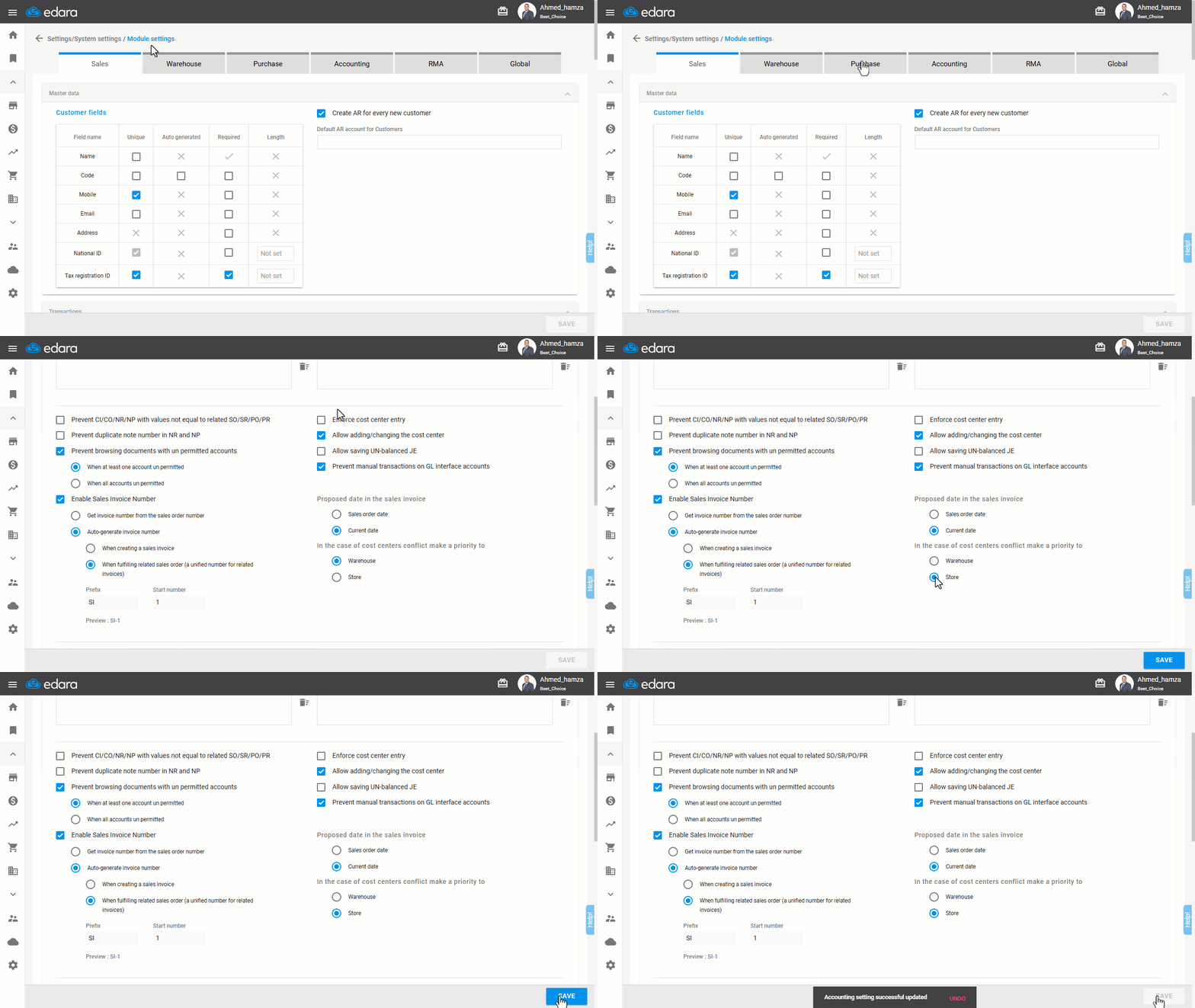
Making the Periorty to the Sales Store in Case of Cost Center Conflicts
- Go to Settings.
- Open the “Module Settings” page.
- Select the “Accounting” module.
By default, the system prioritizes the warehouse’s cost center in case of conflicts. So, change this setting to Sales Store.
- Click on “Save”.
Important Notes:
- New journal entries linked to the sales store will automatically use its default cost center, regardless of whether the order includes stock items, service items, or both.
- You can manually adjust the assigned cost center in these entries if needed.
- This setting does not retroactively affect past documents—it only applies to new transactions.
Frequently asked questions
What happens after giving priority to the sales store?
New journal entries linked to the sales store will automatically use its default cost center, regardless of whether the order includes stock items, service items, or both, You can manually adjust the assigned cost center in these entries if needed, This setting does not retroactively affect past documents—it only applies to new transactions.
If you encounter any challenges or have questions during these processes, you can contact our technical support team, who are ready to assist you at any time.