

Saving a Purchase Order as a Draft
Last updated:
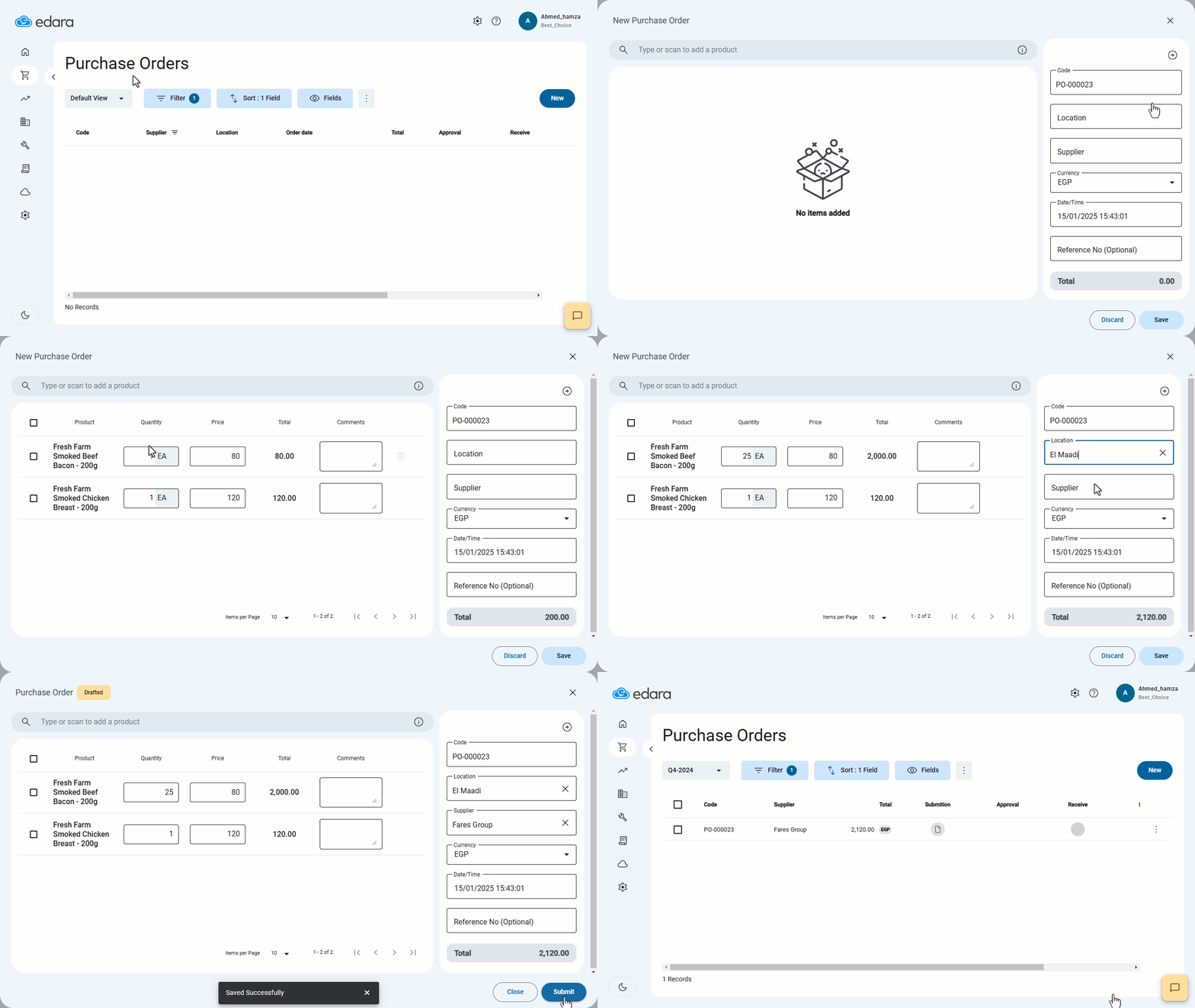
If you create a purchase order with incomplete details or want to save it for editing later, you can easily save it as a draft.
Here are the detailed steps.
Saving a Purchase Order as a Draft
- Go to the Purchase module.
- Open the “Purchase Orders” page.
- Click on “New”.
- Fill in incomplete details for the purchase order.
- Click on “Save”.
The purchase order will automatically be saved as a draft, and a “Submit” button will appear. You can use this button to confirm the purchase order or exit to the main list using the “Close” button.
Note: Once you submit the purchase order, you won’t be able to delete or edit it unless you first undo submit it (which will change its status back to "Draft").
Frequently asked questions
Can I edit a purchase order after submitting it?
Once you submit the purchase order, you won’t be able to delete or edit it unless you first undo submit it (which will change its status back to "Draft").
If you encounter any challenges or have questions during these processes, you can contact our technical support team, who are ready to assist you at any time.