

Displaying Total Permissions in the User and Groups Report
Last updated:
You can easily display user or group permissions on the Users and Groups Report.
Displaying Total Permissions in the User and Groups Report
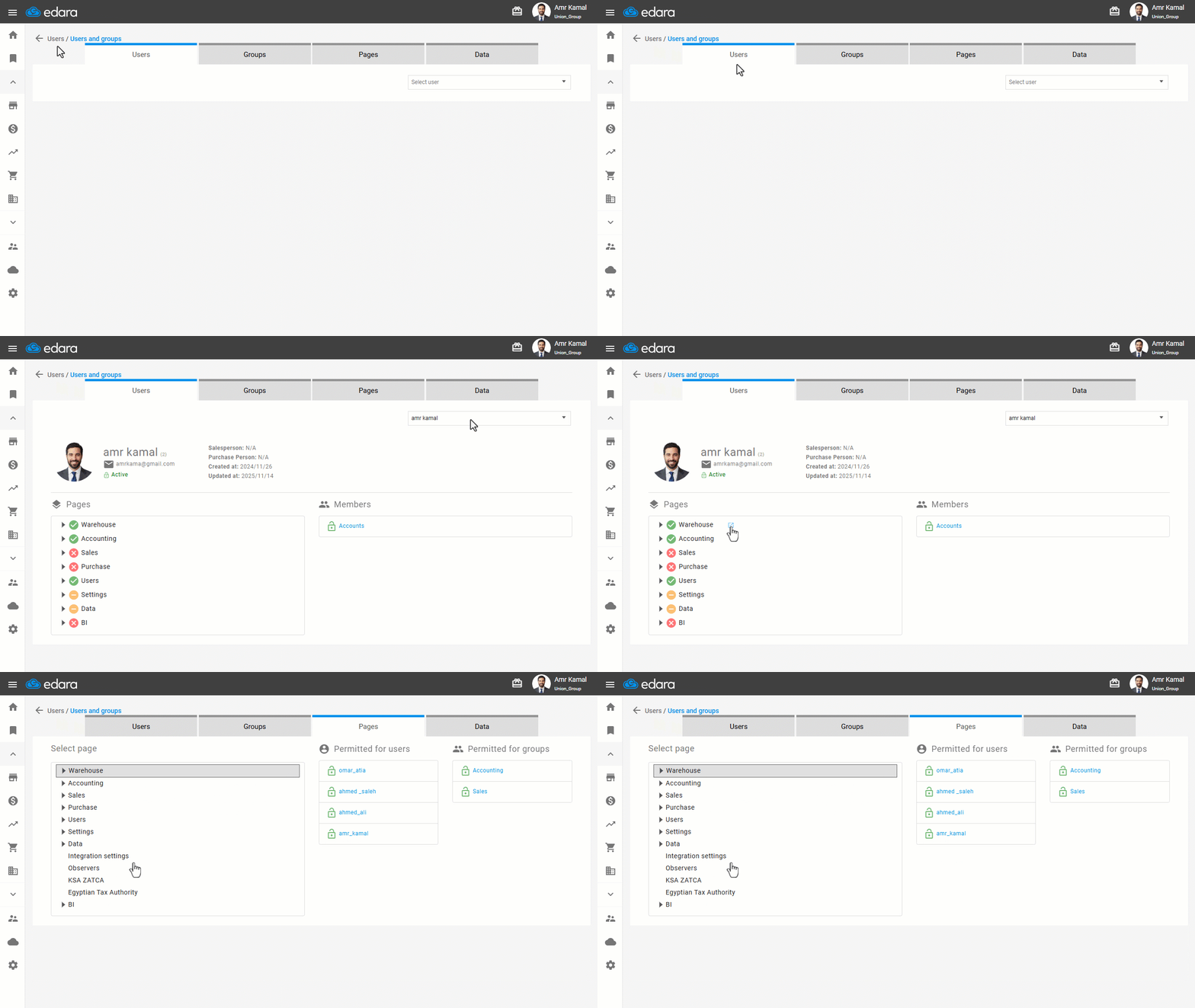
- Go to "Users".
- Open the "Users and groups" page.
The default tab here is the "Users" tab.
- Select the desired user from the dropdown list to view their permissions on the pages
Note: When you click on the “ ” icon, you will be directed to the “Pages” tab.
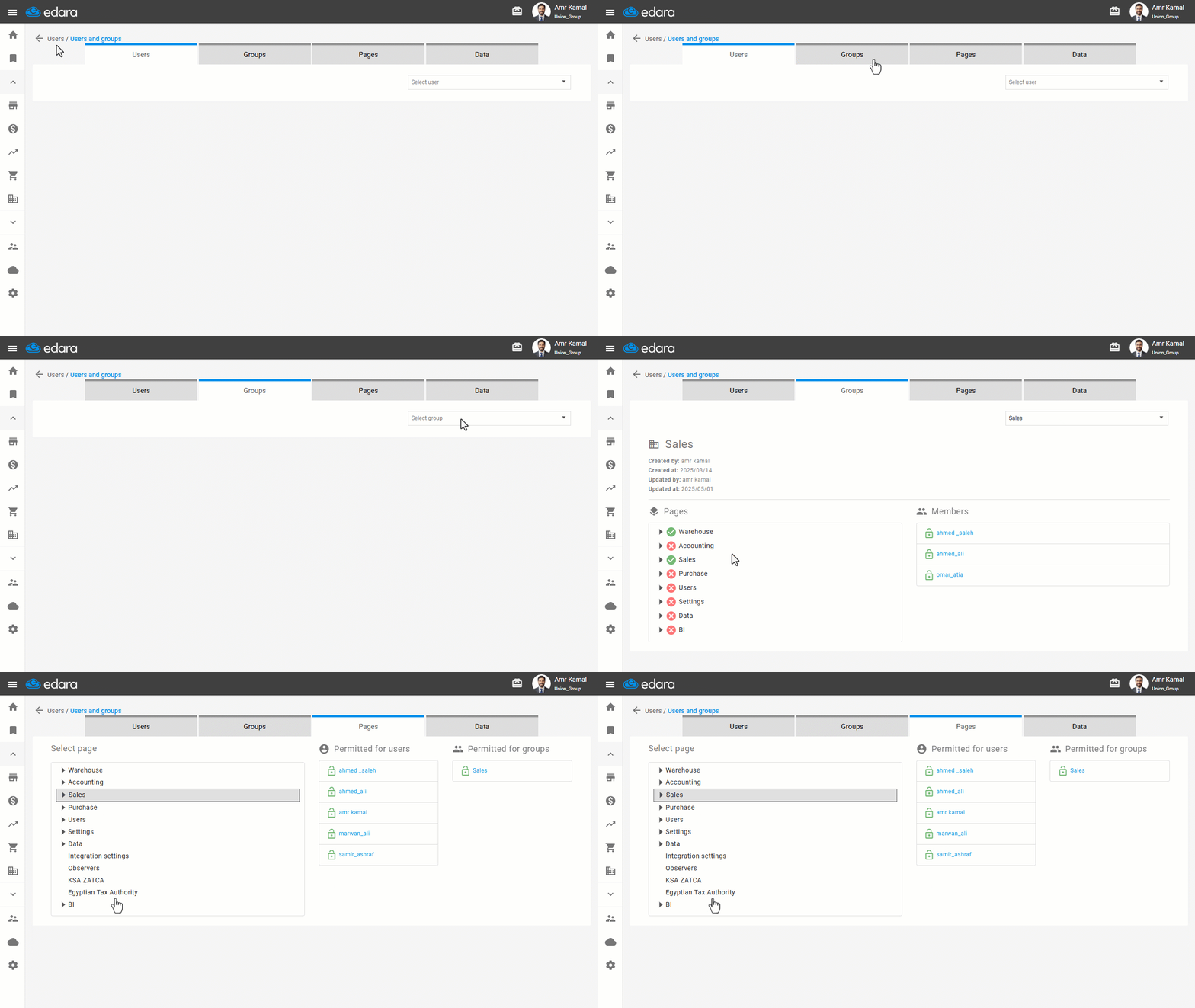
- Repeat the previous steps, then select "Groups" instead of "Users" to view each group's permissions.
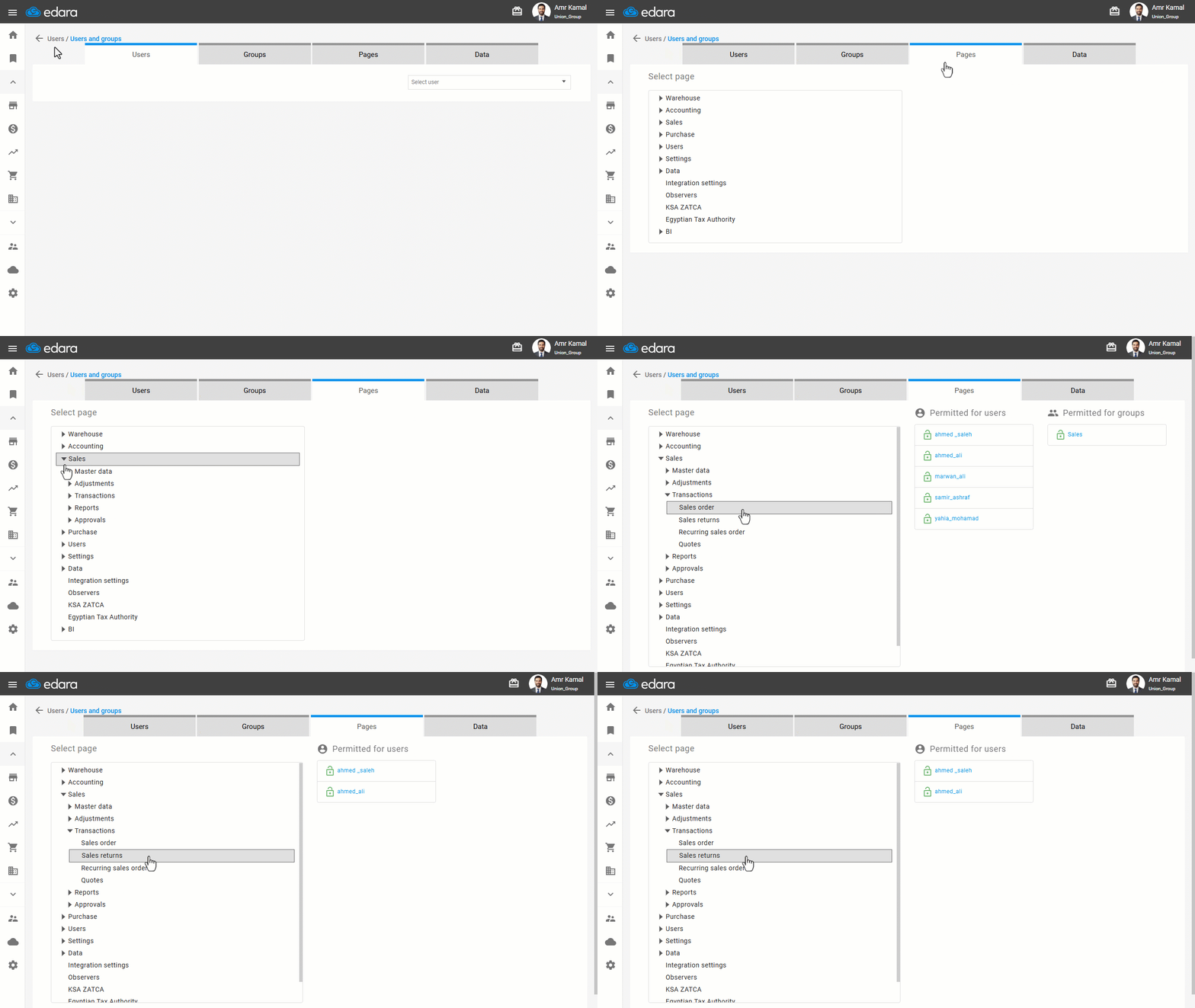
- Repeat the previous steps, then select "Pages" instead of "Users" to see which users or groups have permission for this page.
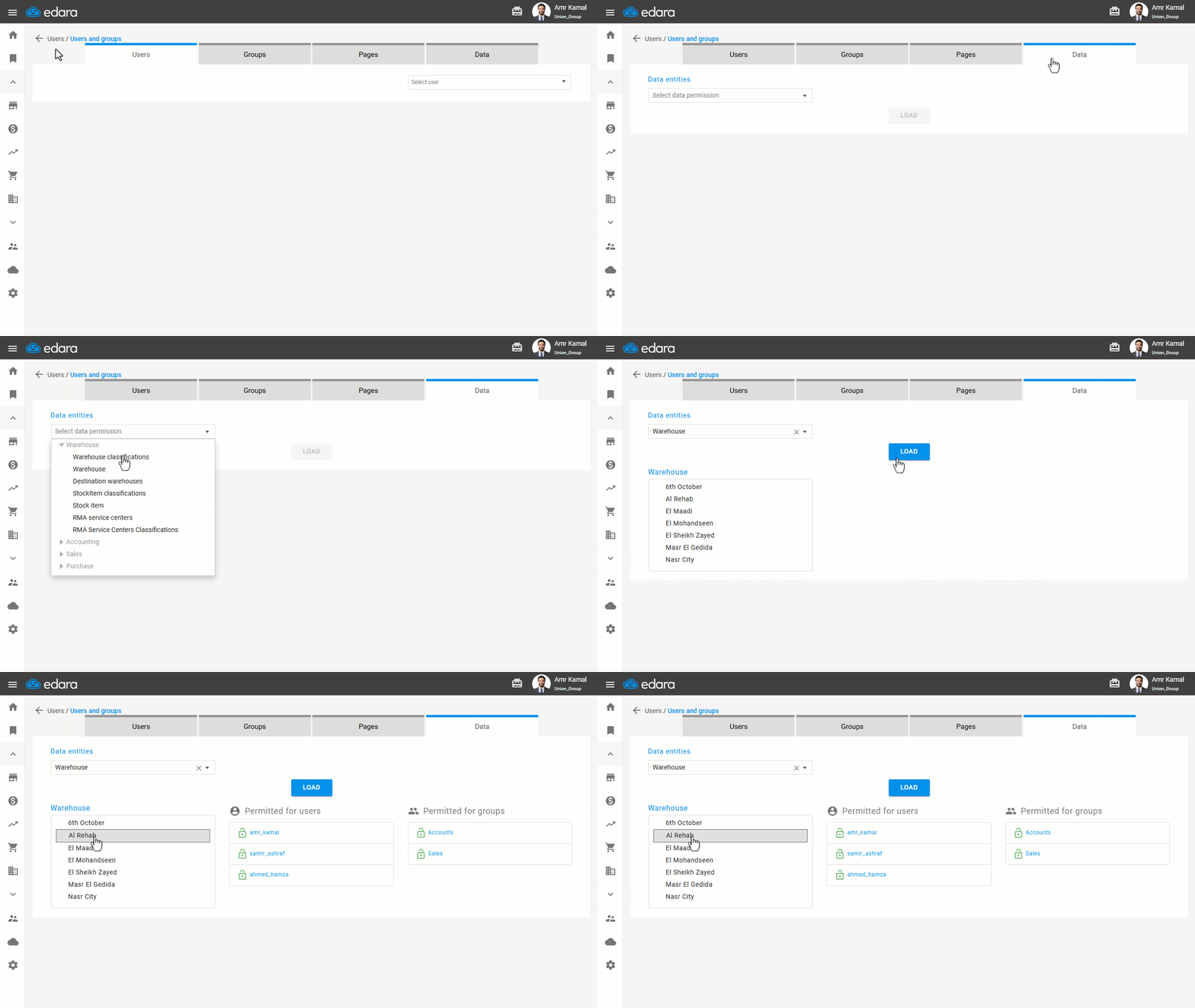
- Repeat the previous steps, then select "Data" instead of "Users", select the Data entities, and click on “Load” to see which users or groups have permission for this Data.
If you encounter any challenges or have questions during these processes, you can contact our technical support team, who are ready to assist you at any time.
Did this answer your question?