

Creating a Sales Target
Last updated:
Sales managers usually set specific sales targets and agree with their team members on achieving them within a defined period. To motivate salespersons to meet these targets, they create sales incentives and link them to the corresponding targets. Later, they use the Sales Tracker Report to determine who qualifies for the incentives and process the payouts.
Creating a Sales Target
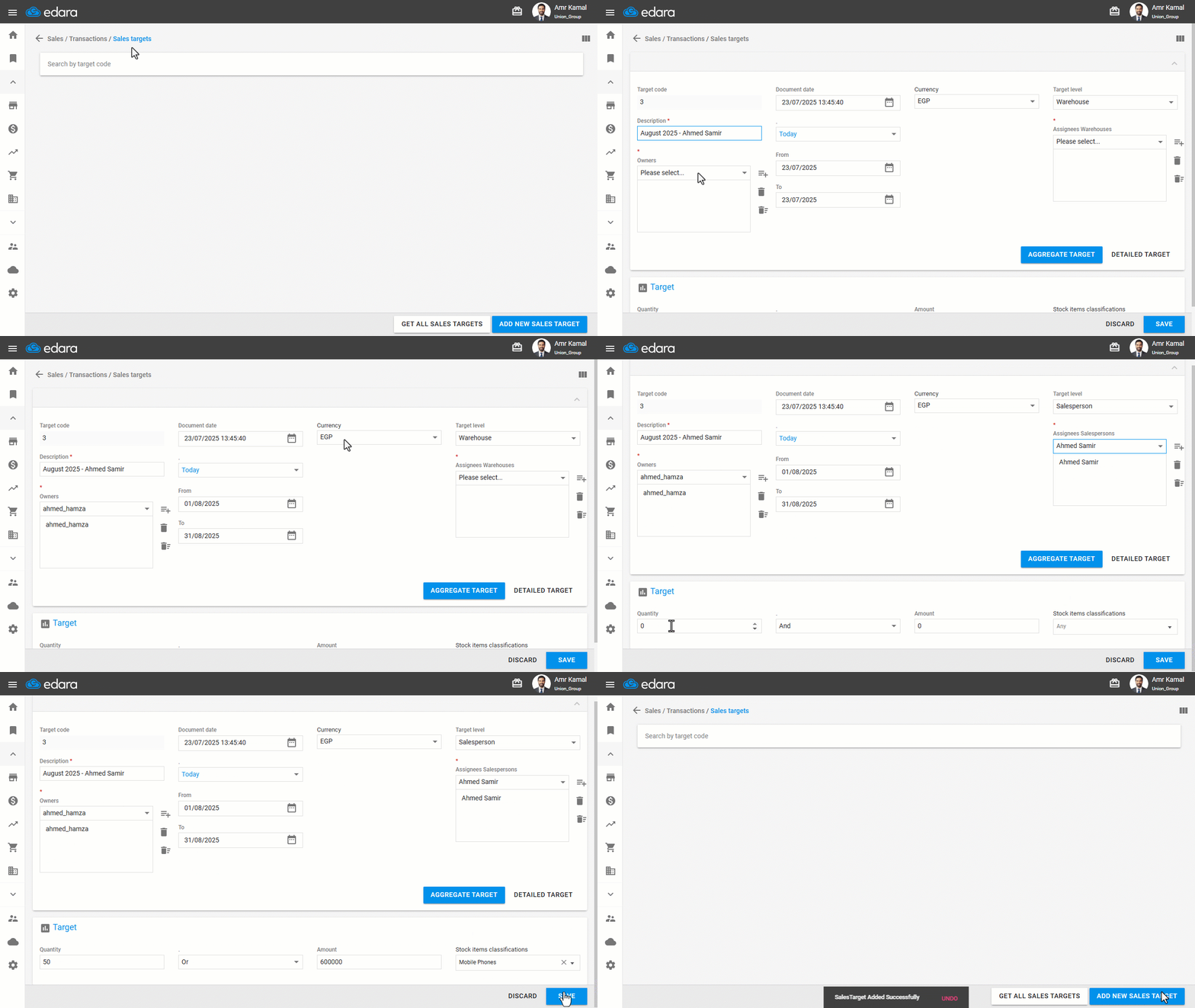
- Go to the "Sales" Module.
- Open the "Sales Target" page.
- Click on "Add New Sales Target".
- Enter the target name in the "Description" field.
- Select the Sales Target Owner.
You can select more than one owner for the document, and each owner will have permission to edit or delete it.
- Specify the date range ("From" and "To").
Note: The "Document Date" field only refers to the date on which the sales target was created and is not related to the period during which the sales target is effective.
- Select the currency used for the target.
- Choose the Target Level (Warehouse - Salesperson).
- Select the Target Assignee. (The available options depend on the selected target level and allow you to choose one or more warehouses or salespersons).
Note: If more than one component is selected within the target level (such as multiple warehouses or multiple salespersons), the selected stock items will be duplicated automatically based on the number of selected entities.
- Select the target type and how it will be applied:
- Aggregate Target: Applied to all stock items in the system. Data is entered at the document header level, with the option to apply the target to a specific stock item classification using filters.
- Detailed Target: Applied to specific items selected through the search bar, whether stock items or service items. Data is entered on each line separately.
You can define a target for quantity only or amount only by leaving the other field as zero. You can also set targets for both and choose the appropriate relationship ("And" / "Or").
- Click on "Save".
Note: When you select the "Detailed Target" application method, you can use the bulk update feature by placing the cursor in the target value, target quantity, or target factor field, then clicking on " ", entering the required value, and clicking on "OK" to update multiple lines at once.
Frequently asked questions
Can a target have more than one owner?
You can select more than one owner for the document, and each owner will have permission to edit or delete it.
How is the “Document Date” related to the target period?
The "Document Date" field only refers to the date on which the sales target was created and is not related to the period during which the sales target is effective.
What happens when I select more than one warehouse or salesperson?
If more than one component is selected within the target level (such as multiple warehouses or multiple salespersons), the selected stock items will be duplicated automatically based on the number of selected entities.
If you encounter any challenges or have questions during these processes, you can contact our technical support team, who are ready to assist you at any time.