

Searching for and Editing a Sales Target
Last updated:
You may need to review a previously created Sales Target to verify its details, make changes to it, or delete a target that is no longer needed or was created by mistake.
Searching for and Editing a Sales Target
Searching for and Editing a Sales Target Using the Target Code
- Go to the "Sales" Module.
- Open the "Sales Target" page.
- Search for the required sales target code and select it.
The Sales Target document will open directly in view mode, allowing you to review its details.
- Click on "
 " to modify the Sales Target.
 - Make the required changes.
- Click on "Save".
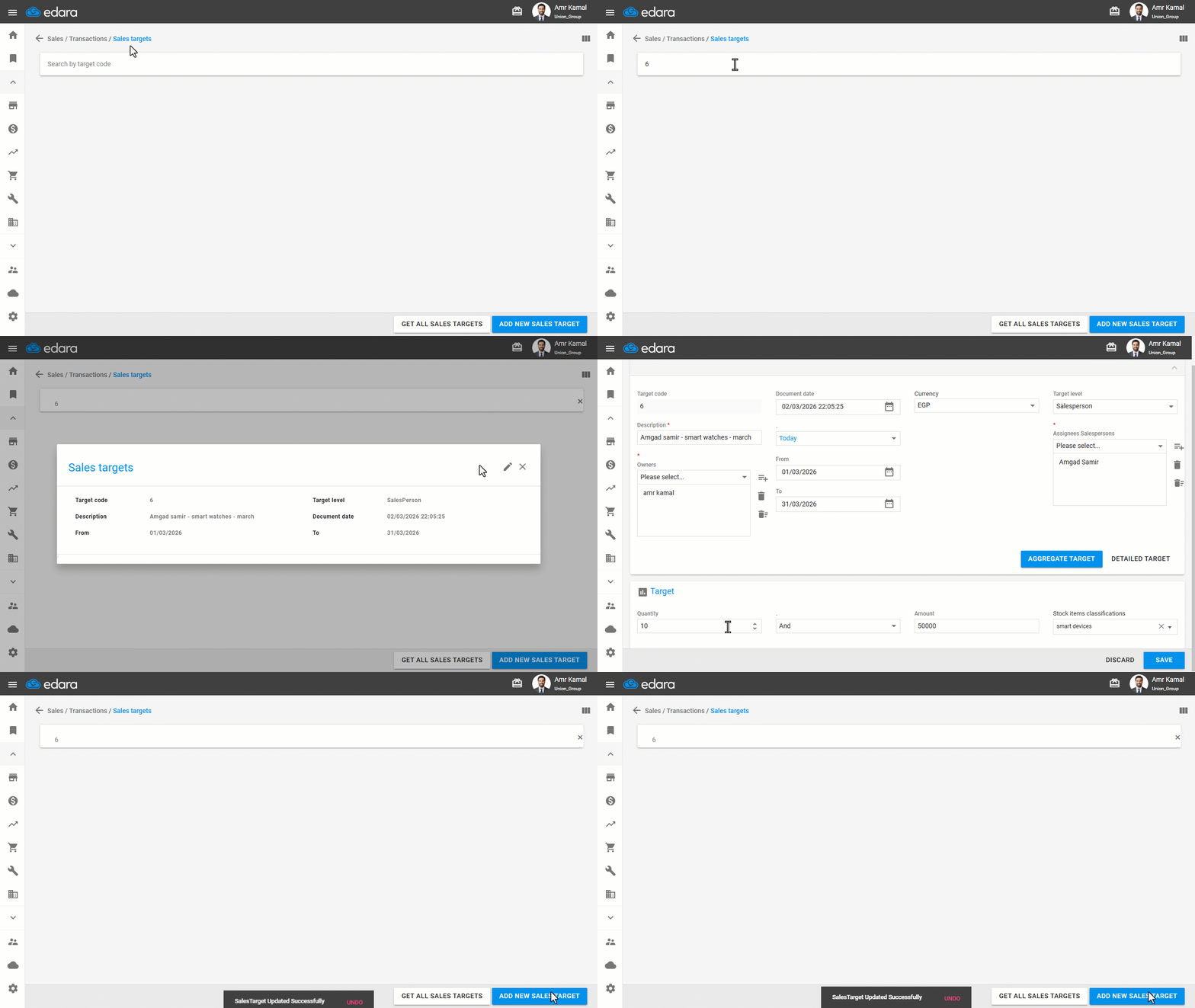
Displaying and Editing All Sales Targets
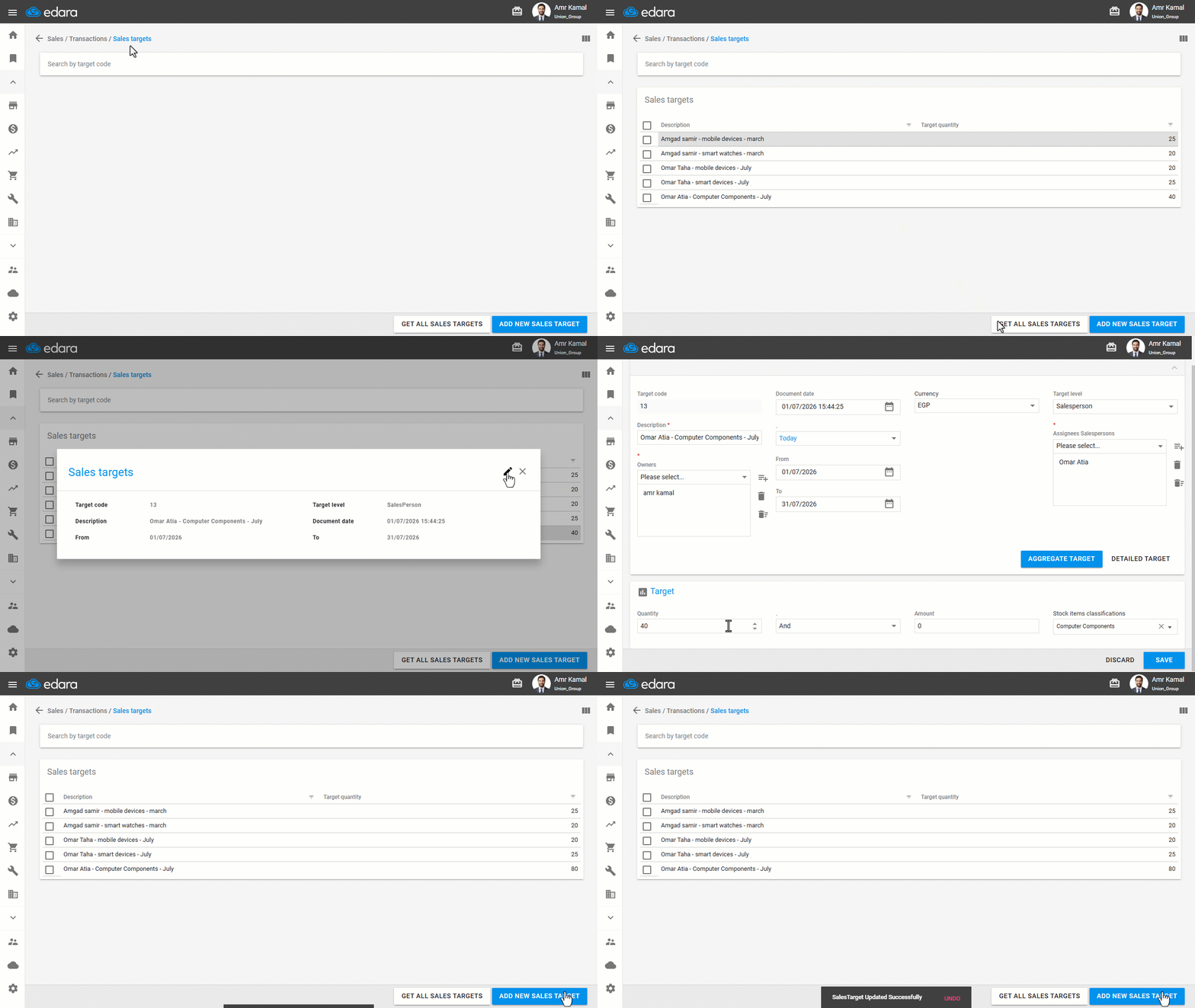
- Go to the "Sales" Module.
- Open the "Sales Target" page.
- Click on "Get All Sales Targets".
A list of all Sales Target documents will be displayed, sorted by code.
- Click on the required target to view its details or make changes.
Notes:
- You can use the sorting and filtering tools to find specific targets, and you can show or hide columns in the list by clicking on “
 ”.
”. - To delete Sales Targets, select one or more targets from the list, then click on "
 ". Deletion is only available to users with deletion permissions, such as the document owner.
Frequently asked questions
How do I delete sales targets?
To delete Sales Targets, select one or more targets from the list, then click on "". Deletion is only available to users with deletion permissions, such as the document owner.
If you encounter any challenges or have questions during these processes, you can contact our technical support team, who are ready to assist you at any time.
Did this answer your question?