

Displaying the Customer Balances Report (BI)
Last updated:
The Customer Balances report in the BI module helps you track customer balances over a specific period and identify the transactions that affected each customer’s balance, such as sales, returns, and cash. This helps you analyze receivables balances and accurately track changes in each customer’s balance from the beginning to the end of the period.
Displaying the Customer Balances Report (BI)
- Go to the “BI” module.
- Open the “Customer Balances” page.
The “table” will be displayed by default.
- Select the required time period.
By default, the report displays all customers and suppliers, and you can apply filters as needed.
- Select the salespersons.
- Select the customer’s Payment Type.
The default payment method for the customer is "Credit", as the report focuses on tracking customer balance movements and the changes made to them. Cash customers typically have a zero balance and therefore do not have balance movements that require monitoring in this report.
The report displays the customer’s “Opening Balance” at the beginning of the selected period, then shows the transactions that affected their balance during the period, ending with the “Customer Net Balance” at the end of the period.
Note: You can search directly within the report by typing part of the customer’s name, code, or any other relevant information. All results containing that search term will appear.
- Control the columns visible in the table using the “Column visibility” option to show or hide columns as needed.
If the “NR_NP Posting” feature is enabled, the report will include columns for Notes Receivable (NR), such as (All NR) and (Returned NR), along with (Uncollected NR), representing uncollected notes. This amount is combined with the (Customer AR Balance) to reach the (Customer Net Balance), which represents the customer’s actual net balance.
If the “NR_NP Posting” feature is not enabled, the NR columns will not appear. The customer AR balance will be calculated from the opening balance, net sales, sales returns, and net cash.
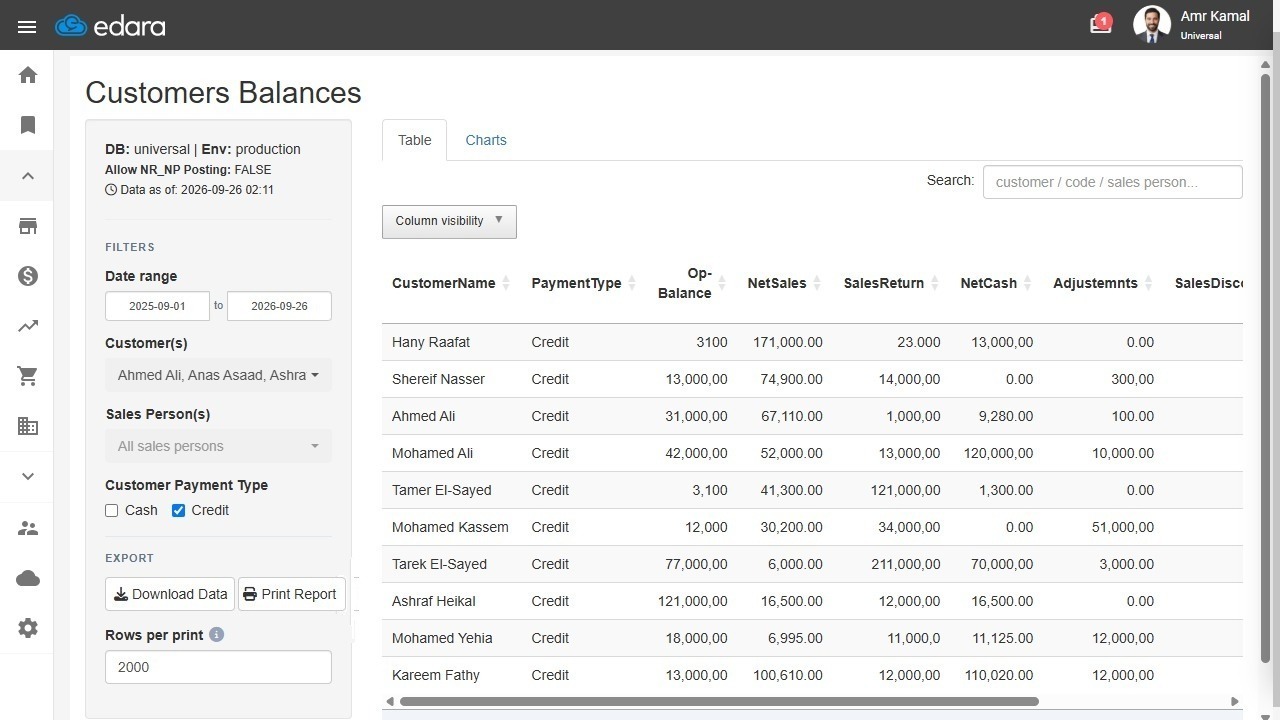
Note: You can click on "Download Data" to download the report data across all pages. You can also print the report by clicking on "Print Report" and specifying the number of rows to be included in the printout. Printing too many rows at once can make the print very heavy and may freeze or crash the browser tab. Keep 'Rows per print' to a few thousand and print large reports page by page.
You can also go to “Charts” to display net sales for salespersons during the selected period and the top 15 customers by net sales.
Frequently asked questions
How do I download or print the report data?
You can click on "Download Data" to download the report data across all pages. You can also print the report by clicking on "Print Report" and specifying the number of rows to be included in the printout. Printing too many rows at once can make the print very heavy and may freeze or crash the browser tab. Keep 'Rows per print' to a few thousand and print large reports page by page.
If you encounter any challenges or have questions during these processes, you can contact our technical support team, who are ready to assist you at any time.