

Designing and Printing Barcodes
Last updated:
You can easily design and print stock item barcodes using the “Barcode Designer”, with the ability to customize the print template and include the required data for your needs.
Designing and Printing Barcodes
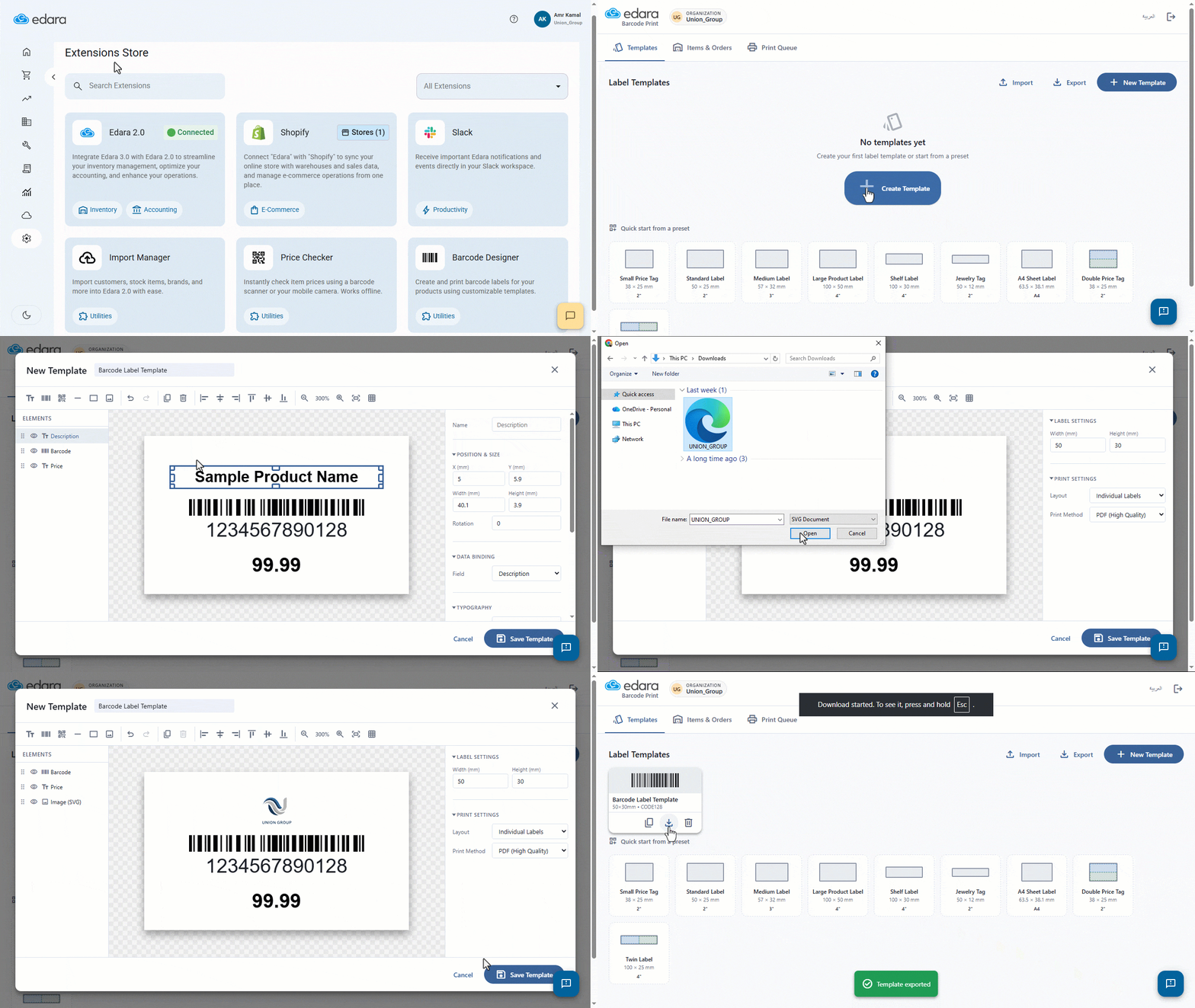
- Go to “System”.
- Open the “Extensions Store” page.
- Click on “Barcode Designer”.
- Enter your “Edara” account email and password.
- Click on “Create Template”.
You can choose one of the available templates if its dimensions meet your needs, instead of creating a new one.
- Enter the template name.
- Select the appropriate barcode dimensions.
By default, the template contains three elements: two text elements (Description – Price) and one barcode. You can also add additional elements to the template by clicking on the element you want to add. Design elements are divided into two types:
- Stock Item Data-Linked Elements: such as (Text – Barcode), used to display stock item data within the template.
- Additional Elements: such as (QR Code – Image – Line – Rectangle), used to add general information or enhance the design layout.
For any element you add, you can:
- Control its position, size, and rotation angle through the “Position & Size” field.
- Link it to the required data through the “Data Binding” field.
- Modify the properties specific to each element based on its type.
- Show or hide the element, or lock it to prevent editing or deletion by clicking on “×”.
- Adjust the positions of the elements within the design.
- Click on “Save Template”.
Notes:
- The barcode template is saved as a PDF by default to ensure high print quality.
- Templates are saved on the device you are using. If you need to use them on another device, you can export the template and then import it into the other device.
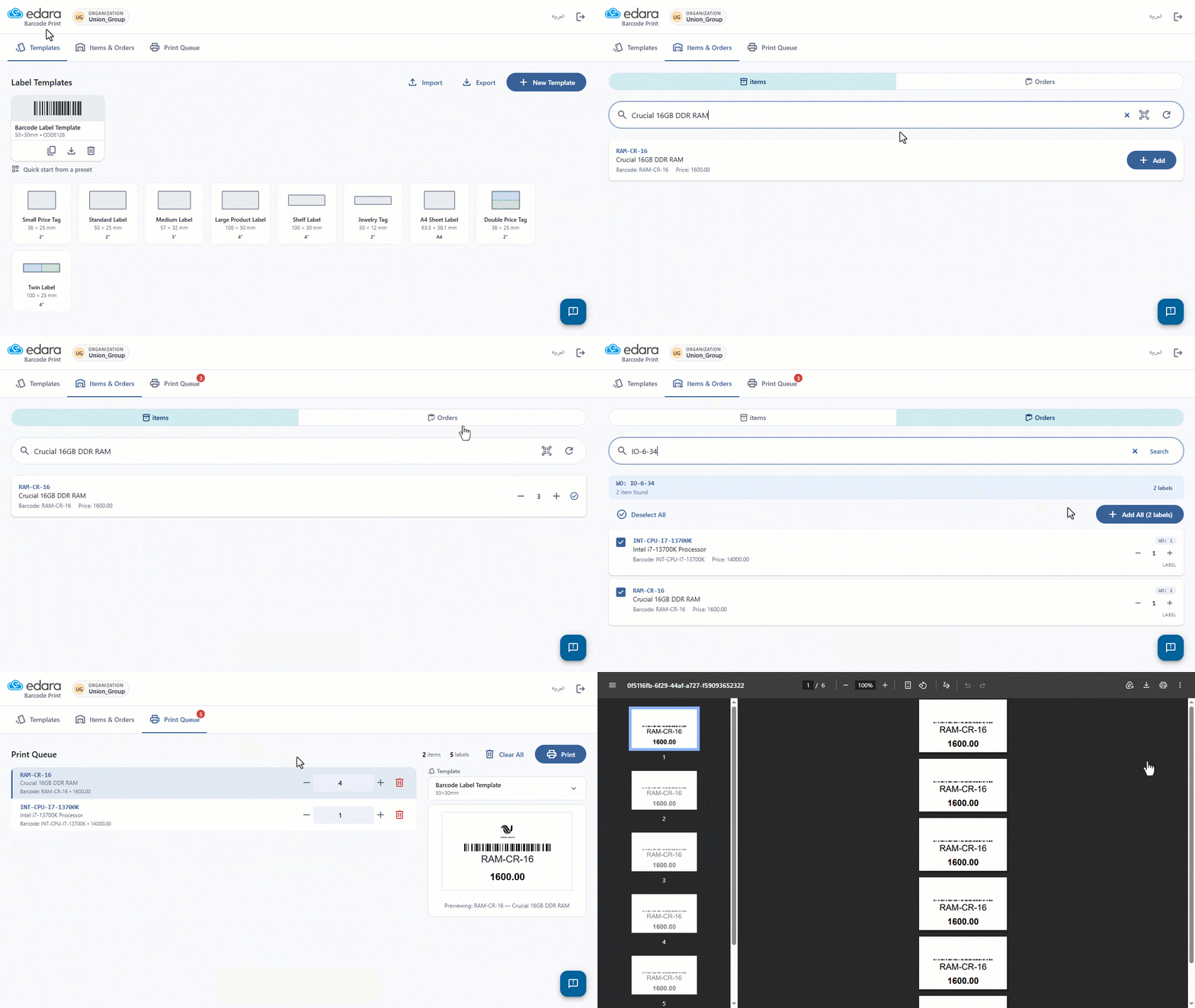
- Go to “Items & Orders”.
- Search for the stock items you want to print barcodes for.
- Click on “Add” to add the stock item.
- You can adjust the quantity of the stock item you added by clicking on “+”.
Note: You can search for a work order and select it to print barcodes for all its stock items at once by going to “Orders” and searching for the work order.
- Go to “Print Queue”.
- Set the quantities for the stock items you want to print.
- Select the Template.
- Click on “Print”.
Note: stock Item barcodes can be printed without an internet connection if stock item data is available. However, printing barcodes for work orders requires an internet connection and the “userManagement.barcodeprint-extension” permission.
Frequently asked questions
How do I use a barcode template on another device?
Templates are saved on the device you are using. If you need to use them on another device, you can export the template and then import it into the other device.
Can barcodes be printed offline?
stock Item barcodes can be printed without an internet connection if stock item data is available. However, printing barcodes for work orders requires an internet connection and the “userManagement.barcodeprint-extension” permission.
If you encounter any challenges or have questions during these processes, you can contact our technical support team, who are ready to assist you at any time.