

Displaying Deleted Documents Details
Last updated:
In some cases, you may need to review financial transactions or check deleted documents to ensure proper procedure. That's why “Edara” allows you to display the details of deleted documents, making it easier to track previous transactions and detect tampering or unauthorized modification.
Displaying Deleted Documents Details

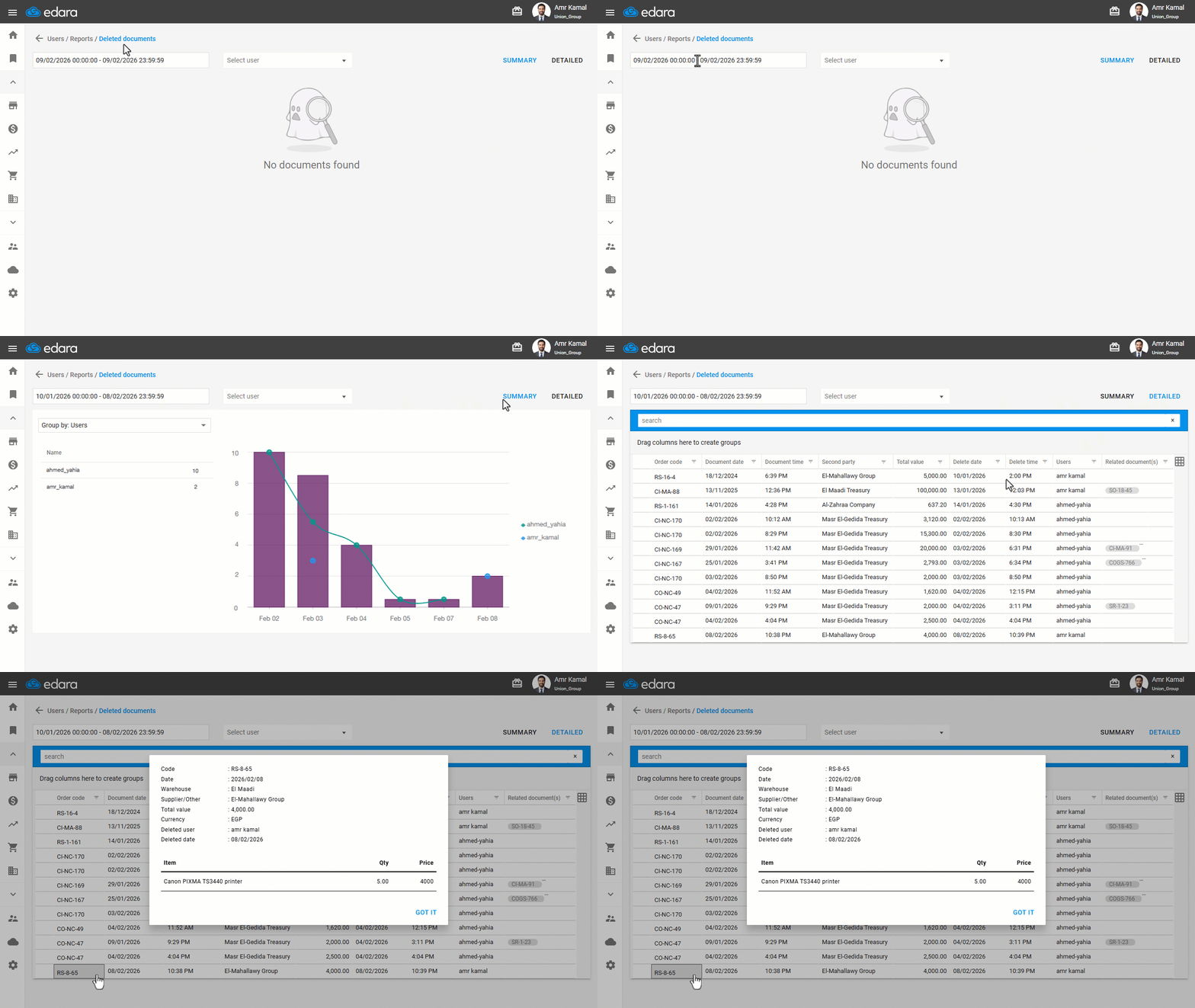
- Go to “Users”.
- Open the “Deleted documents” page.
- Select the date range.
- Click on “Detailed”.
- Hover over the document you want to display details for.
- Click on the icon ”
 ” next to the document code.
The details of the deleted document will be displayed based on its type (e.g., Sales Order, Issue transfers, Cash out, Note receivable, and other documents).
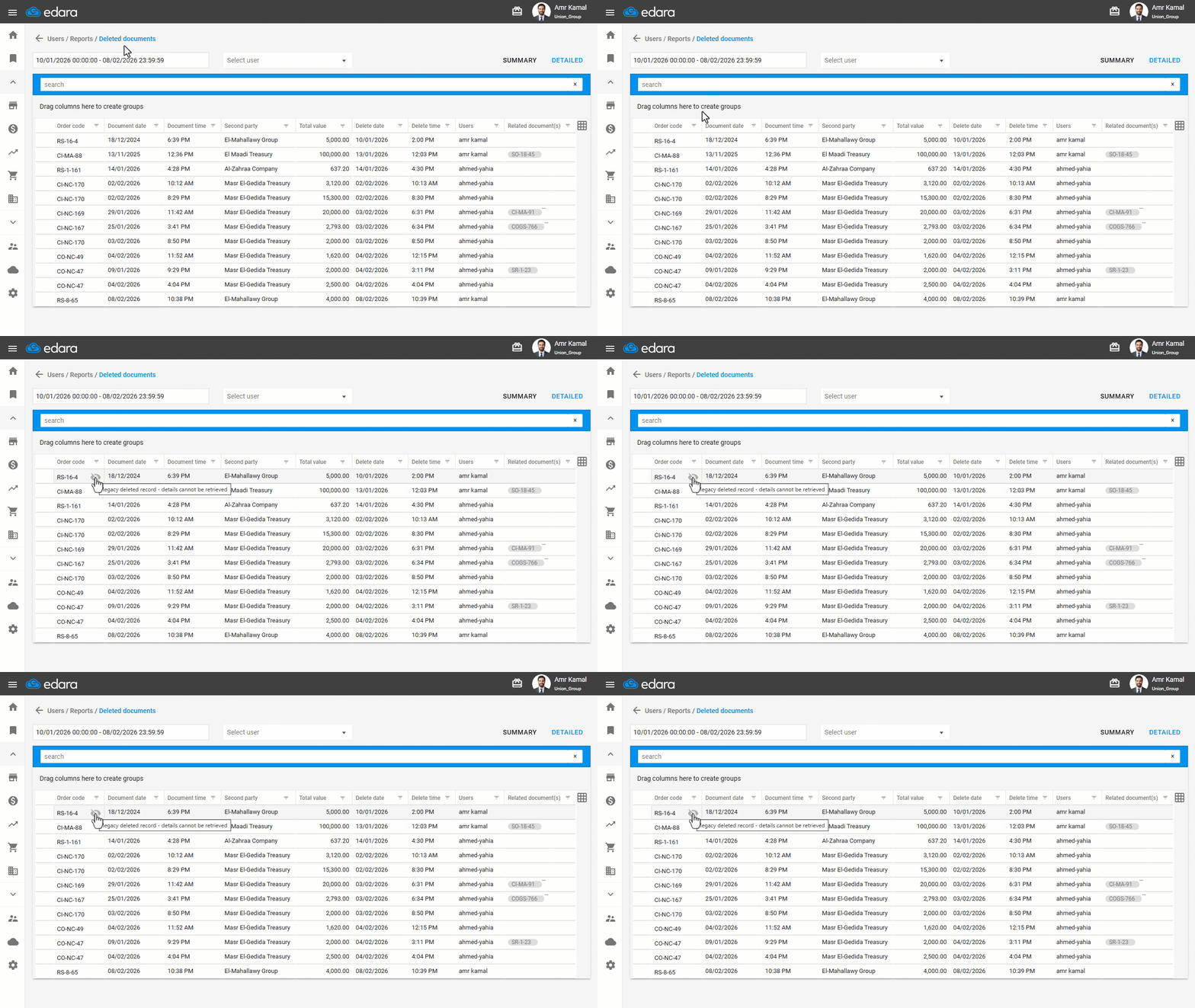
Note: For documents that were deleted a long time ago, you may not be able to view their details. In such cases, this icon will appear next to the document code " " to indicate that the document is too old to display details.
Frequently asked questions
Why can’t I view the details of some deleted documents?
For documents that were deleted a long time ago, you may not be able to view their details. In such cases, this icon will appear next to the document code "" to indicate that the document is too old to display details.
If you encounter any challenges or have questions during these processes, you can contact our technical support team, who are ready to assist you at any time.