

Receiving Supplies in the Warehouse Module and Its Impact on the PO Status
Last updated:
Receiving incoming supplies is one of the responsibilities of the warehouse staff. After creating a purchase order in the "Purchases 3.0" module, submitting it, and approving it (if approval is required), the order will automatically appear as a proposed order on the "Recieve Supplies" page.
This allows warehouse personnel to modify or save it for receiving supplies, and the purchase order’s receipt status will be updated automatically in Purchases 3.0.
Receiving Supplies in the Warehouse Module and Its Impact on the Purchase Order Status
First, ensure the purchase order you want to process has been submitted. Then follow these steps:
- Go to the Warehouse module.
- Open the "Receive Supplies" page.
- Select the warehouse.
- Click on "Proposed Orders".
- Click "→".
- Double-click on the proposed receiving supplies request.
Note: You can modify the receive supply document to add additional information such as:
- Batch number.
- Expiration date.
- Serial number.
- Click "Save" to receive the supplies.
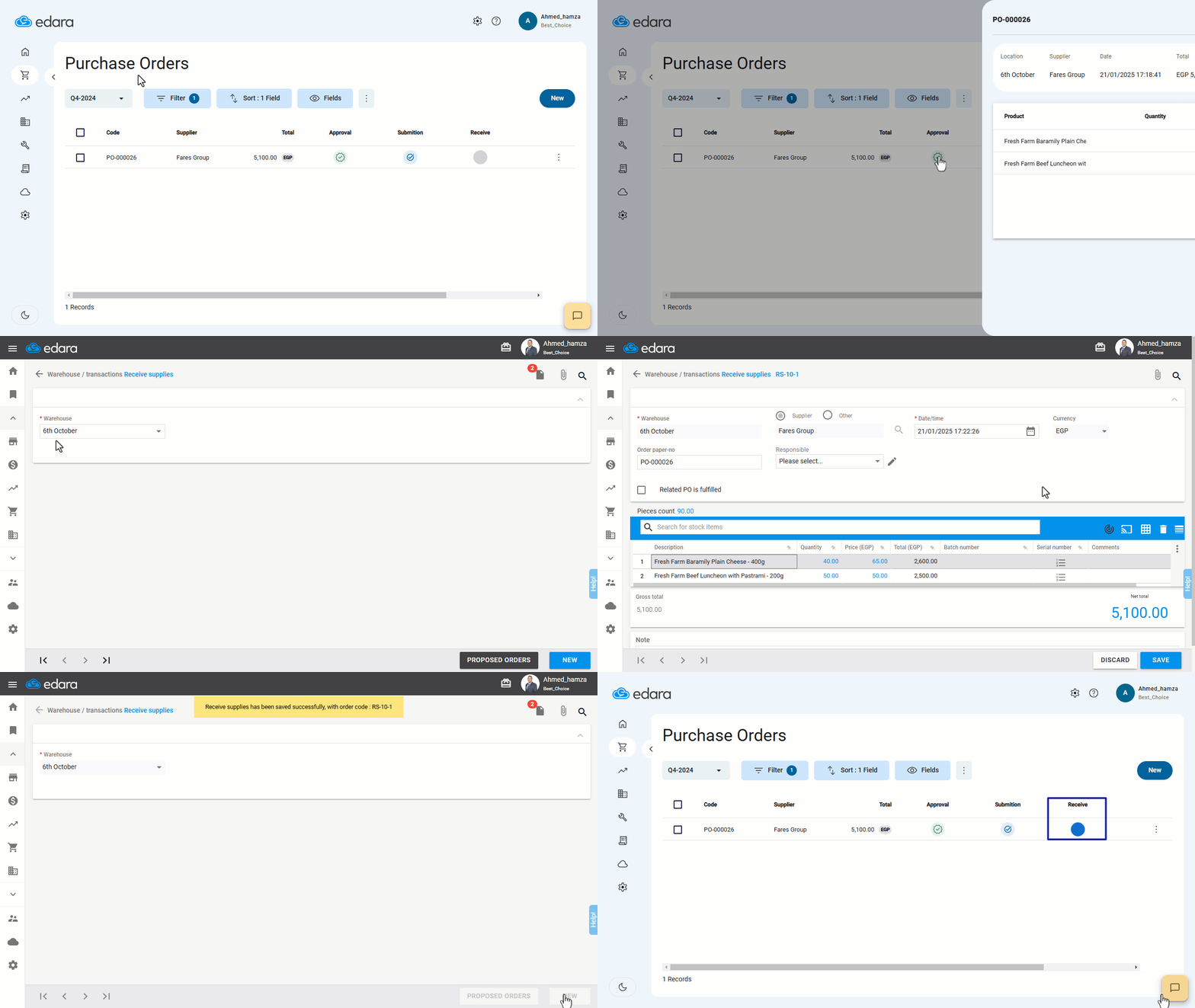
Note: You can receive supplies either partially or fully, provided the relevant setting is enabled.
Frequently asked questions
Can I receive a purchase order partially?
You can receive supplies either partially or fully, provided the relevant setting is enabled.
If you encounter any challenges or have questions during these processes, you can contact our technical support team, who are ready to assist you at any time.