

Displaying Purchase Line Items in the Analytics module
Last updated:
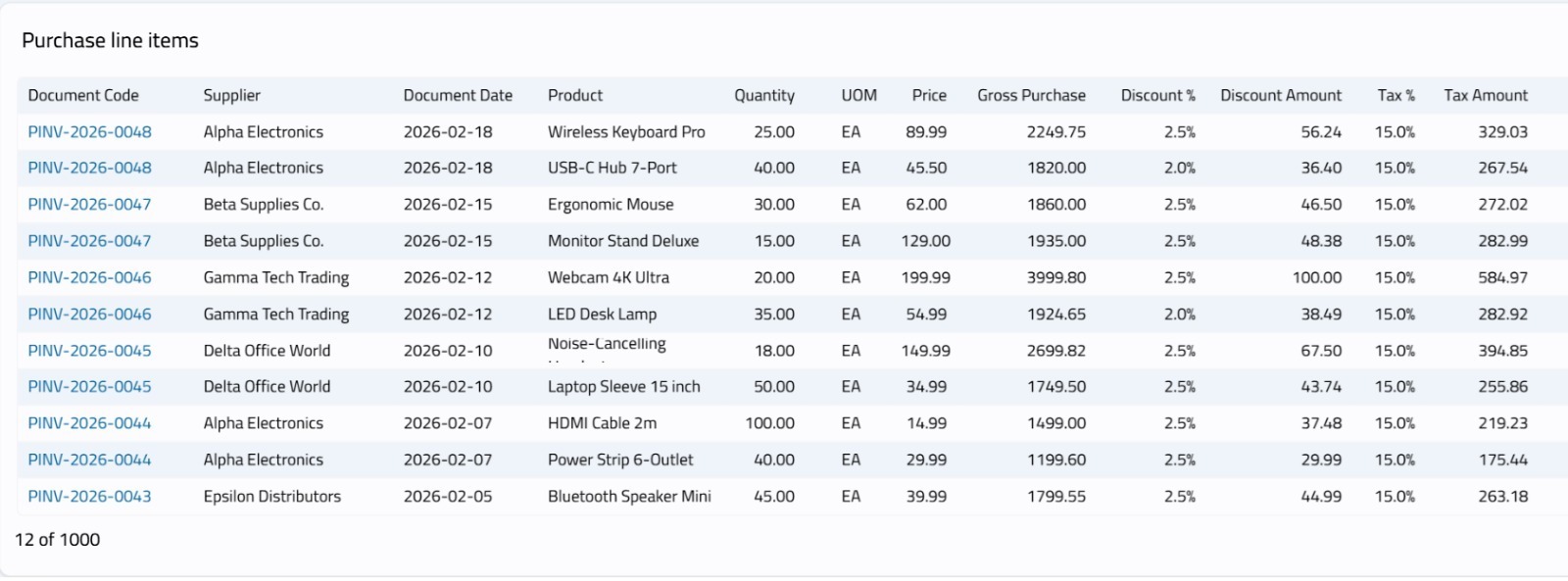
The Purchase Line Items component helps you track the details of purchase invoices for each product line. The component can also be used to easily filter data by supplier, product, and more to display performance and make better purchasing decisions.
Displaying Purchase Line Items in the Analytics module
- Go to the "Analytics" module.
- Open the dashboard where you want to display the component or create a new dashboard.
Note: If the Purchase Line Items component does not appear on the dashboard, you can click on the "+" at the top of the screen, then click on the "+" next to Purchase Line Items to add it to the dashboard.
Modifying the Purchase Line Items Component
- Click on "︙".
- Click on "Edit".
- Click on "Add Condition" to add the filters you need.
- Go to "Sort".
- Select the column and sorting method.
- Click on "Add Another Sort" to add additional sorting options for the component.
- Go to "Fields".
- Click on "
 " to control whether a field is displayed or hidden.
 - Click on "
 " next to a field and drag it up or down to control the order of fields within the component.
 - Click on “Save”.
Frequently asked questions
What should I do if the component doesn’t appear on the dashboard?
If the Purchase Line Items component does not appear on the dashboard, you can click on the "+" at the top of the screen, then click on the "+" next to Purchase Line Items to add it to the dashboard.
If you encounter any challenges or have questions during these processes, you can contact our technical support team, who are ready to assist you at any time.