

Creating a New Dashboard in the Analytics module
Last updated:
The Analytics module in “Edara 3.0” provides a fast way to display data through pre-configured components based on different use cases.
Creating a New Dashboard in the Analytics module
- Go to the “Analytics” module.
- Click on “Default Dashboard”.
- Click on “Create Dashboard”.
- Enter the dashboard name.
- Click on “Create”.
- Click on “Add Component”, and a list of available components will appear, including:
- Click on “+” next to the component you want to add.
The added component will be displayed automatically on the dashboard page.
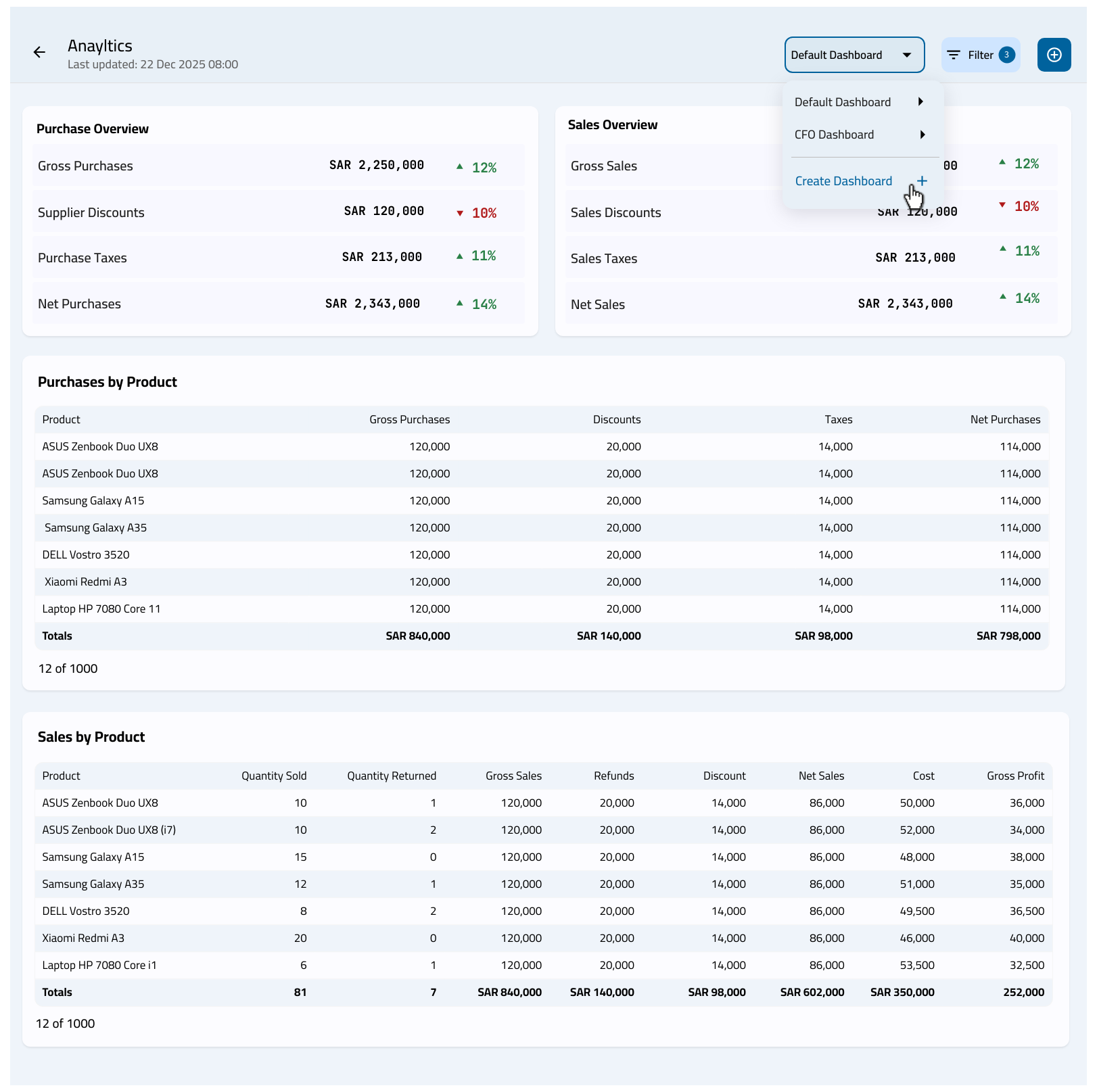
To control the components' results associated with the Dashboard data, you can apply filter conditions to display data according to your requirements:
- Click on "Filter".
- Click on "Add Condition".
- Select the “field”.
- Select the “Operator”.
- Enter the value.
To add another condition:
- Click on "Add Condition" again.
- Specify the relationship between conditions:
- And: to display results that meet all conditions.
- Or: to display results that meet any of the conditions.
- Repeat the above steps to add additional conditions.
The results will be displayed automatically according to the specified conditions.
You can manage the dashboard (rename, delete, or share it with users) by clicking on the dashboard name, then hovering over it to show the options “Share”, “Rename”, and “Delete”.
You can also manage dashboard components (add or remove components) by clicking on the “+” icon at the top of the screen. You can also resize or move a component within the dashboard to display the data in a way that suits your needs.
Frequently asked questions
How do I rename, delete, or share a dashboard?
You can manage the dashboard (rename, delete, or share it with users) by clicking on the dashboard name, then hovering over it to show the options “Share”, “Rename”, and “Delete”.
If you encounter any challenges or have questions during these processes, you can contact our technical support team, who are ready to assist you at any time.