

Custom Fields in POS
Last updated:
Custom fields allow you to record additional information, such as the delivery person, sales channel, or any other notes, ensuring more accurate documentation of orders according to your business needs.
Custom Fields in POS

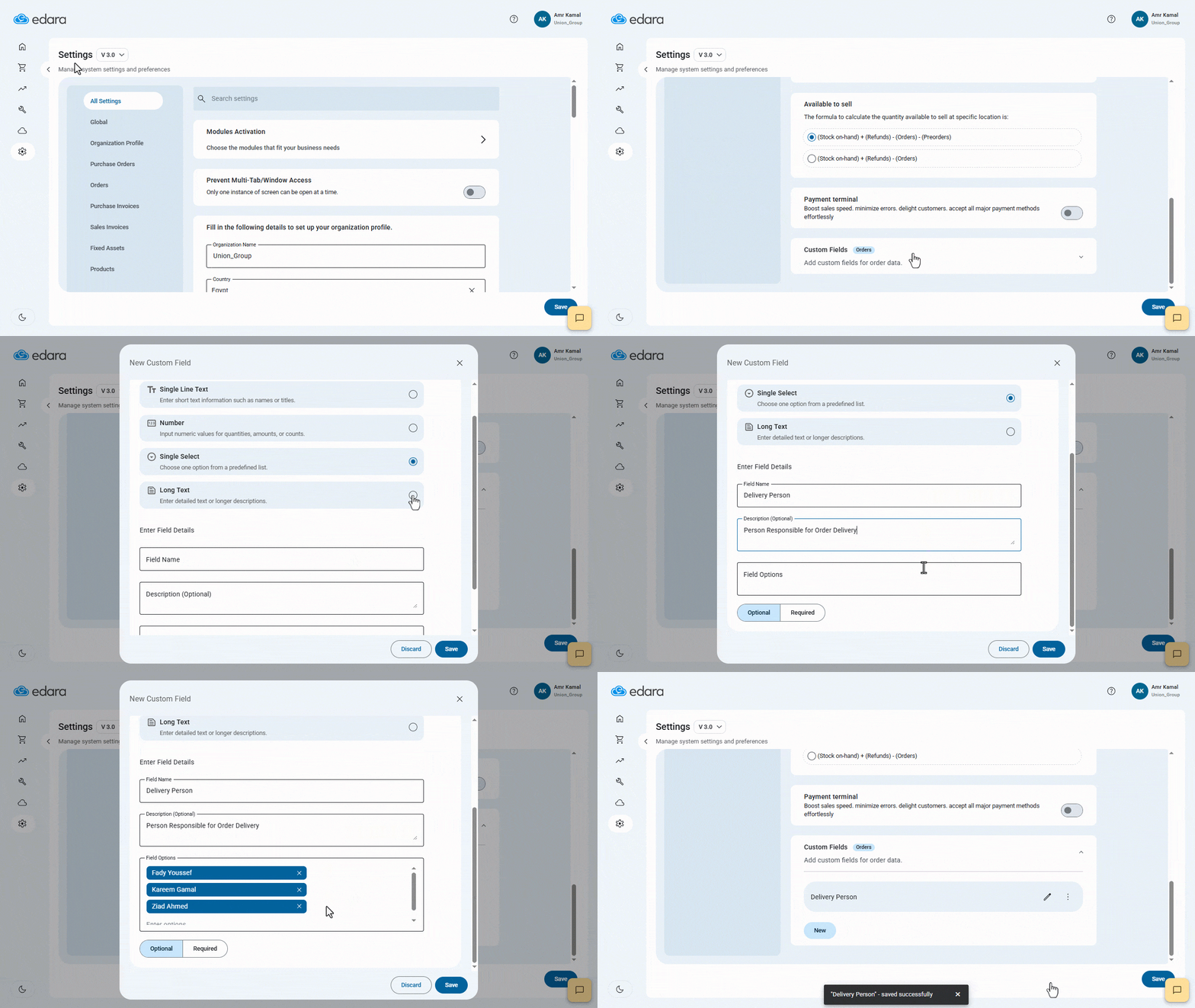
- Go to “System”.
- Open the “Settings” page.
- Select Settings (V 3.0).
- Click on “Orders”.
- Click on “New” in the Custom Fields section.
- Choose the Field Type.
You can select from four options:
- Single Line Text: For entering short text information such as names or titles.
- Number: For numeric values such as quantities, amounts, or counts.
- Single Select: For choosing one option from a predefined list.
- Long Text: For entering detailed text or longer descriptions.
- Enter the Field Name.
Note: Custom field names must be unique. If a duplicate name is used, the system will display an error message requesting a different name.
- Enter a Description (optional).
- Enter the Field Options if the selected type is “Single Select”.
- Specify whether the field is “Optional” or “Required”.
- Click on “Save”.
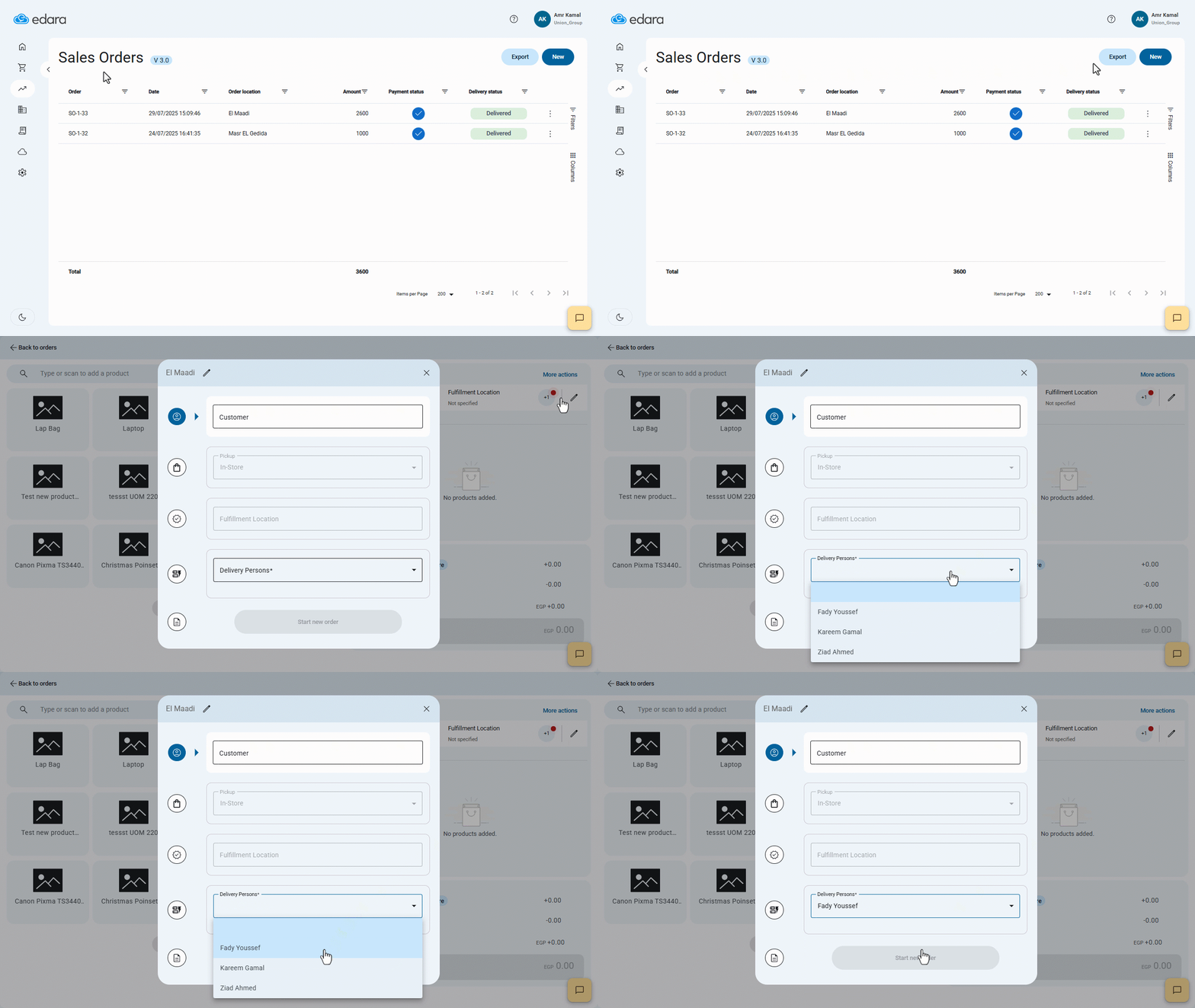
After saving, the custom field will appear on the Sales Order creation screens, depending on the configuration you’ve set.
If you encounter any challenges or have questions during these processes, you can contact our technical support team, who are ready to assist you at any time.
Did this answer your question?